Register a patient
Open Patients and select New patient. Enter a name, mobile number, age or date of birth, and sex if known. Only the name is required. Enter advances through single-line fields; Tab moves through all controls. Shift + Enter saves the record.
Age in years is an estimate, marked About in the chart. Use date of birth instead when an exact date is known. An approximate age never creates a guessed birth date.
Expand More details to add email, city or allergies. Email is optional for registration and needed for portal invitations or email reminders. Select Send a patient portal invitation if the patient wants access and has a suitable Google account.
Find the right record
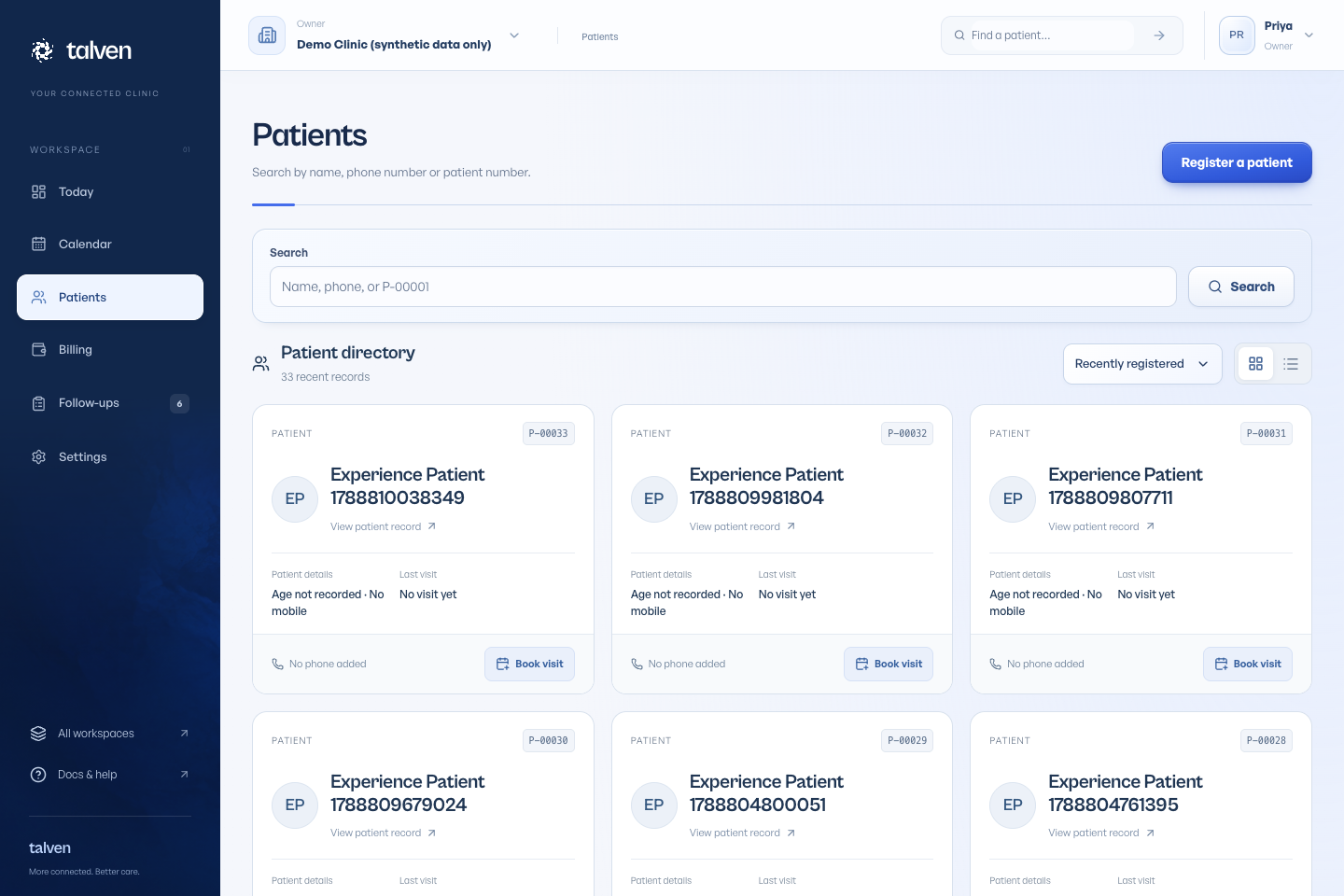
Search by name, patient ID or at least three digits from the mobile number. Spaces and punctuation in phone numbers are ignored. Names may be entered in a different order, and close spelling matches can appear after exact matches.
Check the age, sex, mobile ending and last visit before selecting a result. An approximate age has a ~ prefix. A possible duplicate is a warning to investigate; relatives can share a phone, and Talven does not automatically combine their records.
Read the patient overview
The Overview tab brings appointments, consultations, reports, billing activity and follow-ups together. The patient header shows the last consultation, next appointment and outstanding follow-ups. Doctors also see the latest recorded measurements with their dates and sources. These are historical observations, not live readings.
Filter Care activity to focus on a record type, or open a linked entry to continue working. The Reports tab holds uploaded files. Details & access contains Edit details, caregiver contacts, email reminder agreement and patient portal controls. Caregiver contacts do not grant chart access.
Use Left/Right arrows, Home or End on the tabs. Tab enters the visible panel; hidden panels do not add keyboard stops. The header keyboard guide lists the sections in the active tab.
Download a readable chart summary
If your account has chart export access, select Download summary beside Book appointment, then Download PDF. The file goes to your browser’s downloads instead of opening a raw data page. Open the PDF to read, print or share it through your usual process.
The summary includes patient details, caregiver contacts, recorded observations and a dated activity history. It is not a prescription or a complete clinical chart. Consultation notes, prescriptions and report files remain available separately from their individual records.
For a data transfer, expand Need structured data? and download JSON. This option is intended for another system, not everyday reading. Both formats require the existing export permission and record an export audit entry.
Merge a duplicate patient
Open the duplicate chart, open More record actions (the three-dot menu), and choose Merge a duplicate record. Search for the record to keep and compare the name, age, mobile, email and patient number. A shared family phone is not proof that two records belong to one person.
The preview lists the records that will move. Staff with patient editing access must explain how identity was verified and type the retained patient number. Clinical content, prescriptions, invoice amounts and payments are preserved. The original identity remains in Merge history, and old patient links and searches lead to the retained record.
Revoke active portal access and pending invitations on both records first. After merging, confirm the contact details, record fresh email reminder agreement and invite the patient again if needed. Queued reminders are cancelled and old email action links stop working. The app does not offer an undo action.
Register a walk-in without slowing the queue
Search before opening New patient. If a matching chart exists, confirm identity and use that chart; a changed phone number is a reason to update contact details, not to create another history.
For a new patient, enter the name and the details you know, then save. You can return to Edit patient details later for email, city and other information. Do not enter a placeholder birth date or another person’s mobile just to fill an optional field.
- Search using the name, patient number or mobile.
- Confirm identity if you find a possible match.
- For a new person, enter the name and available mobile, age/DOB and sex.
- Save with Shift + Enter, then book the visit.
If you use a family mobile, check whose number it is. Keep separate charts for separate people even when their contact details match.